4 Claude Code Tricks I Wish I'd Known Sooner
By now, you’ve installed Claude Code and you’ve run it through a few tasks. Maybe you’ve had that 🤯 moment of it tackling something you didn’t think was possible…
But there’s this nagging feeling that you’re only scratching the surface. Like there’s more that Claude Code can do, if you just knew how to ask.
I had that same feeling for a while. Claude Code was useful, but browsing through Twitter and some trial and error helped me discover a few tricks that made it even more powerful.
Here are four of my favorites.
Drag and drop images right into the terminal
Even though Claude Code looks like a text box, the underlying language models can “see” and understand images. If you want it to look at and parse something visual, you just need to show it.
In Claude Code, you can do that by dropping an image file directly on top of the terminal window.
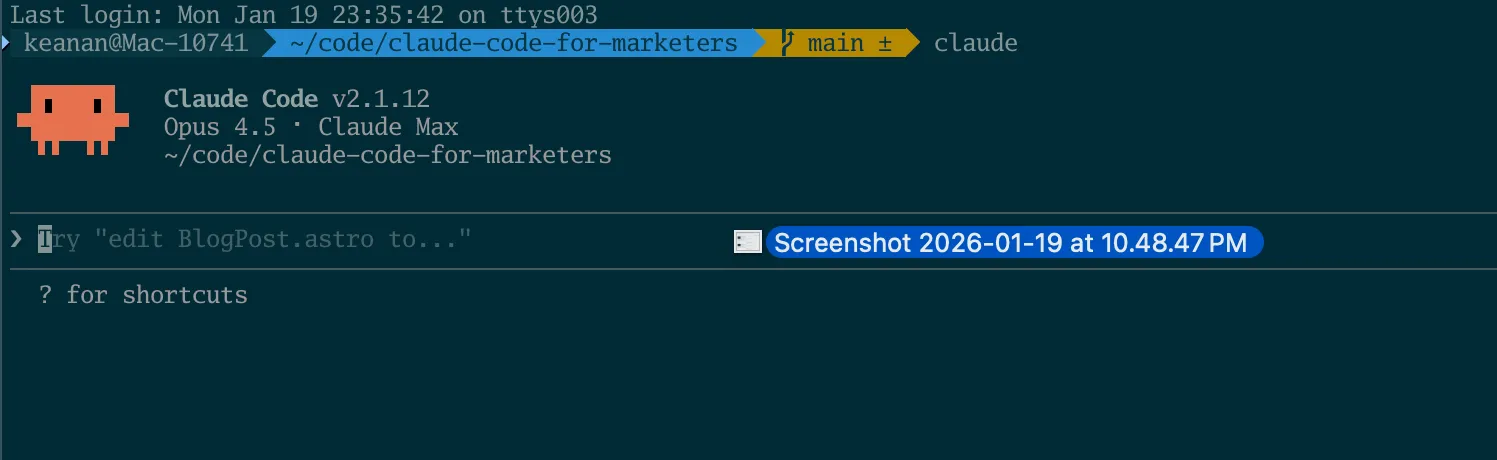
You’ll see an indicator for each image you drag and drop like this, and when you hit enter, Claude will take in that data in addition to any text you submitted.
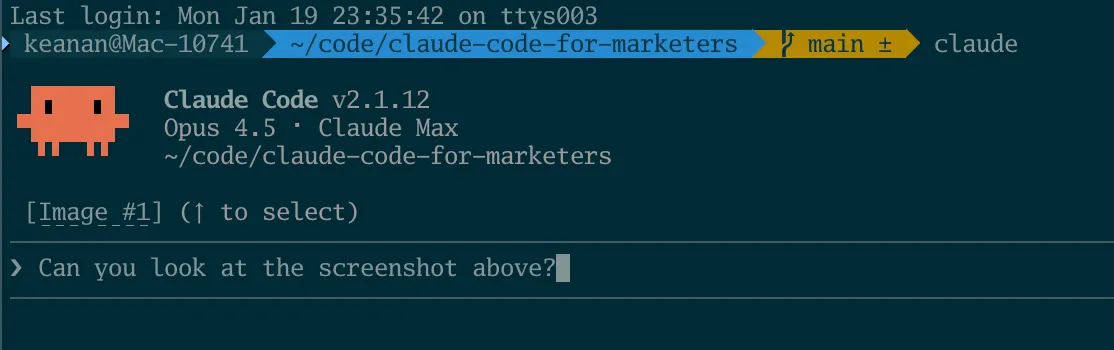
I use this constantly in a few different ways:
-
Debugging a broken website layout. If I’m working on a website and the layout is looking wonky, I’ll take a screenshot and drop it into Claude Code. Especially if it’s a purely visual bug, Claude can often spot the issue faster than looking through the code or trying to understand my vague explanation of what’s happening.
-
Reverse-engineering a style. When I see a marketing asset I like (maybe a landing page, an ad, or a social graphic), I’ll screenshot it and ask Claude to create a style guide based on what it sees, including colors, typography, spacing, and any design styles that it sees. This helps me learn to define what I like and don’t like in more specific terms, which is always a good thing.
-
Anything that’s easier to show than explain. Sometimes you just need Claude to look at something. A chart, a mockup, an error message on screen. Dragging it in is faster than describing it or trying to copy/paste all the text.
Recently I was working on improving a website’s page speed scores. I took a screenshot of the Google PageSpeed results, dropped it into Claude Code, and said something like: “We’ve got some pagespeed issues here. Walk through them one by one and fix what you can. Here’s access to a web browser and Chrome dev tools so you can double-check your fixes as you go.”
Ten minutes later, I had a site with a 15 point boost across the board. Claude worked through each issue systematically, and I didn’t have to explain what “Largest Contentful Paint” meant or dig through the documentation myself.
Make Claude Code improve its own instructions
If you haven’t used it yet, you should know that you can create a file named CLAUDE.md that lives in your project folder. It’s how Claude Code learns your preferences: your writing style, your project structure, things you always want done a certain way.
And while you could write this file yourself, there’s a faster way.
As you’re working with Claude Code (on writing a blog post, for example), you’re always giving it feedback: “That’s too formal.” “I’d phrase this differently.” “Don’t use bullet points here.” Any and all the little corrections you’d normally make.
Do that as you normally would, but then, at the end of the session, say something like: “Use my feedback on this work to update CLAUDE.md for next time.”
Claude will take everything it learned and add it to the instructions file. The next time you work together, it already knows your preferences and will catch a lot of these fixes automatically.
I do this constantly when I’m writing or outlining with Claude. I’ll draft a blog post with Claude, give feedback throughout, and then ask it to update CLAUDE.md with whatever it learned. Over time, the file becomes a detailed guide to how I write. The result is that first drafts get closer and closer to what I actually want.
It’s like training an assistant, except the training sticks.
Claude’s hidden YOLO mode (use carefully)
By default, Claude Code asks for permission before running commands (which is one of the reasons you shouldn’t be scared of the terminal). This is a good thing. You want to know what’s happening on your machine.
But sometimes you just want to let it run.
There’s a flag for that: --dangerously-skip-permissions. When you start Claude Code with this flag, it won’t stop to ask for approval when it decides to use tools. It just does whatever it thinks needs to happen.
For this behavior, you’d run claude --dangerously-skip-permissions to start a session.
You can think of this mode like giving an intern the company credit card and saying “do whatever you need to do on this project, I trust you.” It could go great! Or you could be very unpleasantly surprised. It depends on how well you defined the task (and how focused the intern is).
When to “YOLO” it:
- Prototyping something quick and messy
- First drafts where you want to see what Claude comes up with
- Creative exploration where you don’t want to keep hitting “approve”
When NOT to use it:
- Anything involving production systems
- Projects with sensitive data
- Work you can’t easily undo
The name of the flag isn’t subtle. “Dangerously” is right there in the name. So, use it when speed matters more than caution, and make sure you’re working on something where mistakes are cheap.
Bring your own expertise to the conversation
Claude Code is smart, but it doesn’t know what you know. And sometimes it helps to tell it.
State your opinion about the approach. If you have a preference for how something should be done, say so upfront.
For example, if I’m writing a landing page and I know I want to lead with social proof, I’ll say: “Let’s open with customer testimonials rather than feature bullets.” Claude will run with that direction instead of suggesting something else entirely. That’s a preference I have based on what’s worked before, which means Claude doesn’t have to guess.
Ask for internet research when the topic is current. Claude’s training data has a cutoff date. If you’re working on something that changes fast (a new API, recent industry news, evolving best practices), tell Claude to search the web before diving in.
I do this when writing about anything time-sensitive by adding something like “search the internet for the latest documentation before we start.” It takes a few extra seconds, but it means Claude is working with current information instead of potentially outdated knowledge.
When you’re collaborating with Claude, the more you bring to the conversation, the better the output.
You don’t have to use all of these at once. Pick one, try it on your next project, and see how it changes things.
Keep leveling up
These are small things that make a big difference once you know about them. The pattern across all of them: Claude Code can do more than you might expect, but sometimes you need to tell it explicitly.
There’s always more to discover. In our next post, we’ll look at how to use Obsidian to build up a more persistent knowledge base for Claude Code to work with.
Which of these are you going to try first? I’d love to hear how it goes. Reach out on Twitter, LinkedIn, or send me an email at keanan@claudecodeformarketers.com.
Join our free 7-day email course and learn how to use Claude Code for your marketing work. Then, get notified when we publish new use cases and ways to stay ahead of the curve.
No spam. Unsubscribe anytime.