How I use Claude Code to research competitors
Let’s say you need to write up a competitor analysis. Whether it’s for a strategy meeting, maybe your boss asked for it, or just because you’re curious.
Either way, you’re staring down hours of tab-switching, note-taking, and trying to synthesize a dozen different sources into something coherent.
This is exactly the kind of task I now hand to Claude Code.
In this post, I’ll walk you through how I used Claude Code to research a competitor and turn that research into a polished report, all in a single interface.
A quick note on “deep research” functionality
If you’ve used Claude’s web interface, you might have seen its Research feature, which does extensive multi-step research. That feature isn’t available natively in Claude Code (yet). What we’re doing here is simpler: using Claude Code’s built-in web search to get solid research without leaving the terminal. For most competitor analyses, this is more than enough.
What we’re building
By the end of this post, you’ll have a competitor comparison report that covers:
- What the competitor does and who they serve
- How their offering compares to yours
- Strengths, weaknesses, and opportunities
- Key takeaways for your team
If you’ve been following along with this series, you already have Claude Code installed and ready to go. If not, start there (it only takes a few minutes).
Kicking off the research
Here’s the prompt I used to get started:
Can you tell me how Retool workflows compares to n8n? Produce a comprehensive competitive report in Markdown format.
What happens next is where Claude Code starts to feel different from regular Claude.
Claude Code works in a loop: it decides what to do, uses a tool (like web search), looks at the result, then decides the next step. You’ll see it thinking, searching, reading pages, thinking again.
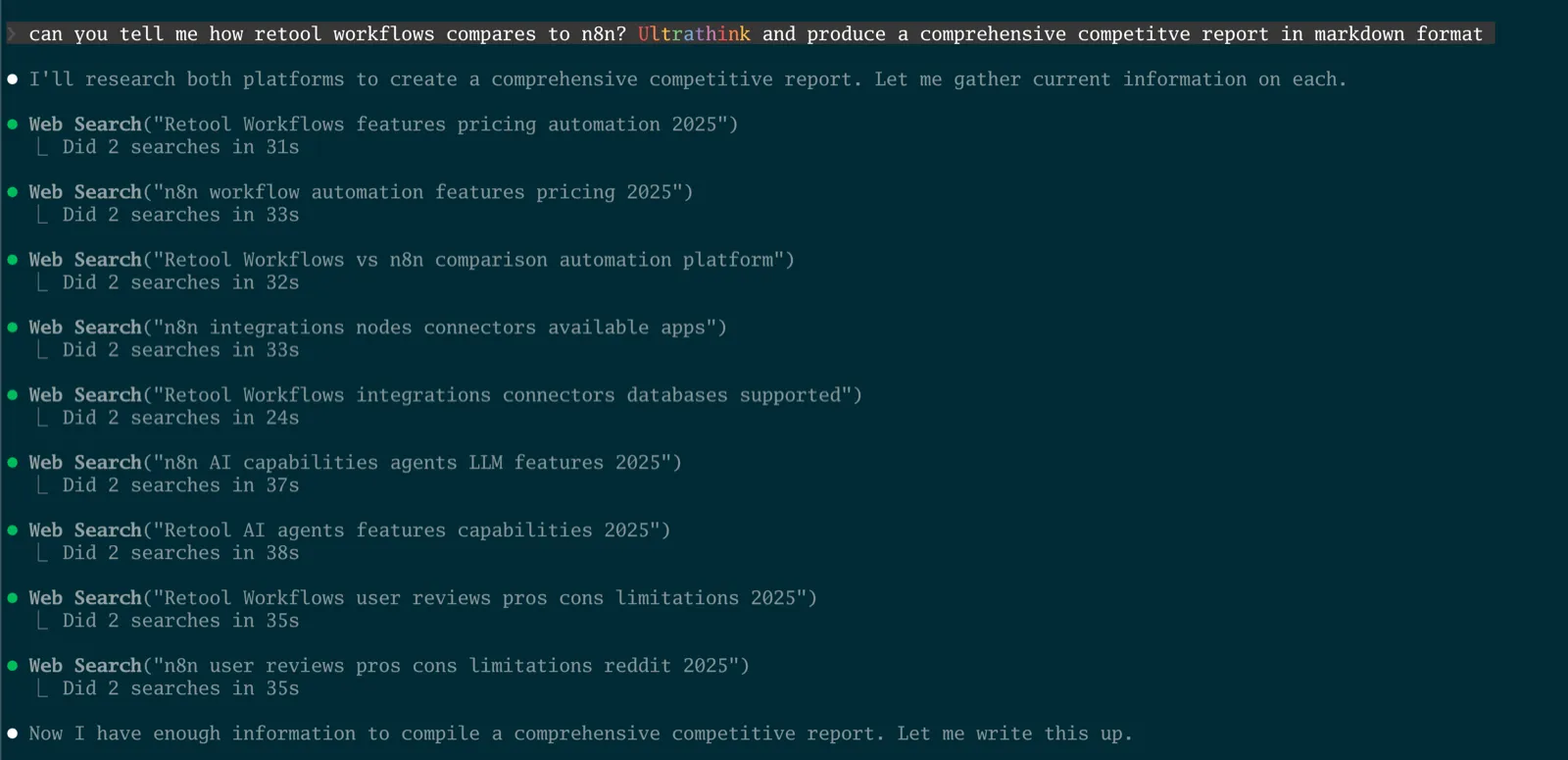
Look at all those searches. Pricing, features, integrations, AI capabilities, user reviews. Claude is doing the tab-switching for me, pulling from a ton of different sources and synthesizing as it goes. This took about five minutes to run.
Writing to markdown files
Here’s a habit I’ve picked up: I always ask Claude Code to save its work to a markdown file. This means the information it finds can be persistent between sessions and that it’s portable. Just by adding Save this analysis to a file called competitor-analysis.md to my prompt, I then have a file I can come back to, iterate on, or share with my team.
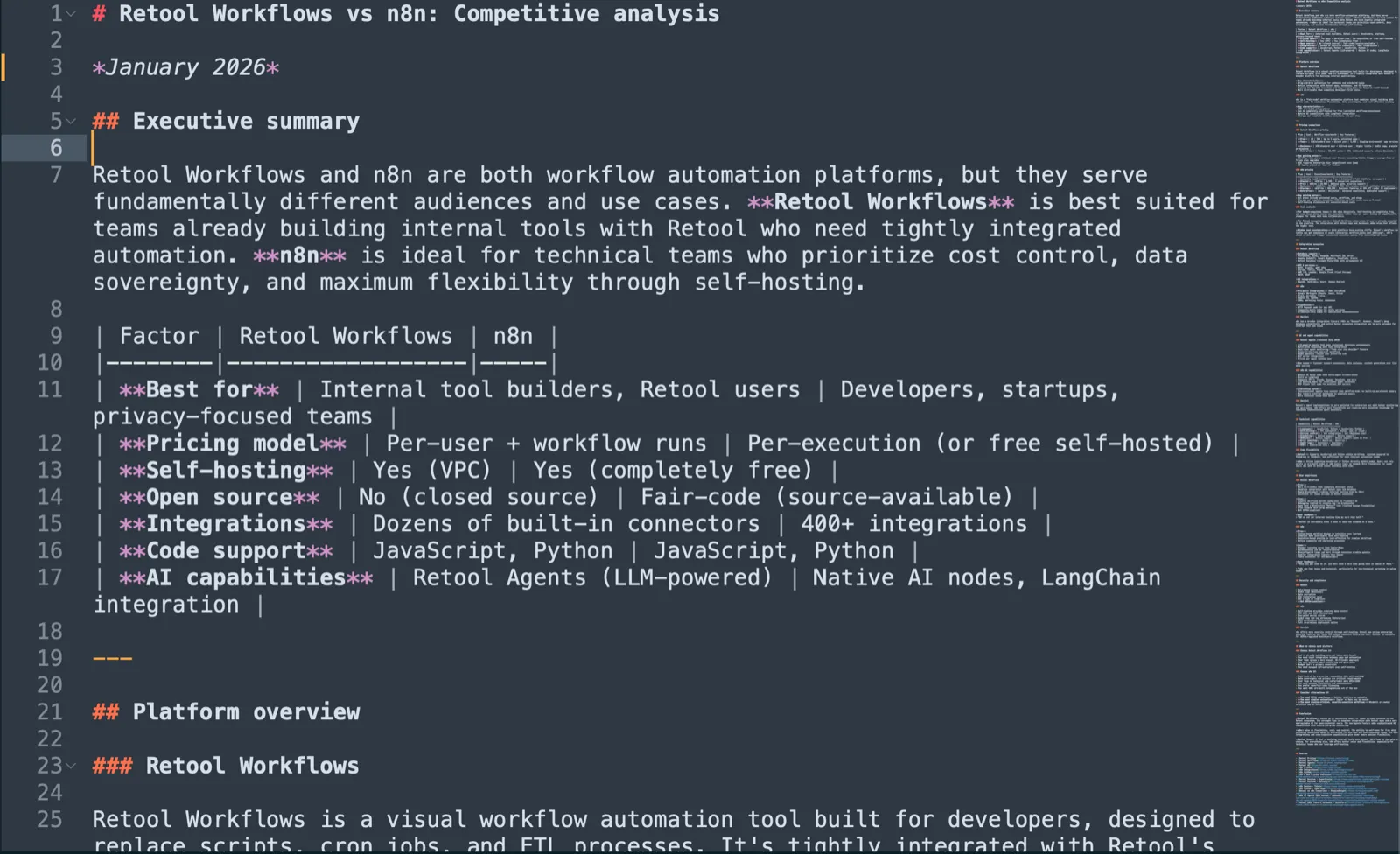
Look at that: an executive summary, a comparison table, detailed platform overviews. All in a clean markdown file that I can open anywhere.
Want to see the full output? Download the complete competitive report that Claude Code generated.
Iterating on the report
This is where Claude Code really shines. If the first draft isn’t quite right, I can just ask for changes and Claude updates the file directly.
Requests like “Make the executive summary punchier” or “Add more detail to the pricing comparison” work great. And since it knows about the markdown file, it will make its updates directly in that file, giving us one source of truth for all our information.
CLAUDE.md: your secret weapon for consistency
If you find yourself giving Claude the same context over and over (your company name, your tone of voice, your preferred format), there’s a better way.
CLAUDE.md is a special file that Claude Code reads automatically. Anything you put in there becomes context for every conversation. You can have a CLAUDE.md file that’s specific to a particular project, or one that applies to every project that you use Claude Code with.
For competitor analysis, I include:
- My company name and what we do
- Our target audience
- The tone I want (professional but not stuffy)
Now when I ask for a competitor report, Claude already knows who “we” are, which means I can spend less time repeating myself.
Bonus: getting your report into Google Docs
Markdown is great, but your team probably lives in Google Docs. Here’s the good news: copying markdown into Google Docs works surprisingly well.
- Open your markdown file
- Select all and copy
- Paste into Google Docs (Edit -> Paste from Markdown)
Headers, bullet points, and bold text all transfer cleanly. You might need to tweak some spacing, but 90% of the formatting just works.
NOTE: If you don’t see the option to Paste from Markdown, you may have to enable it in your Google Docs settings.
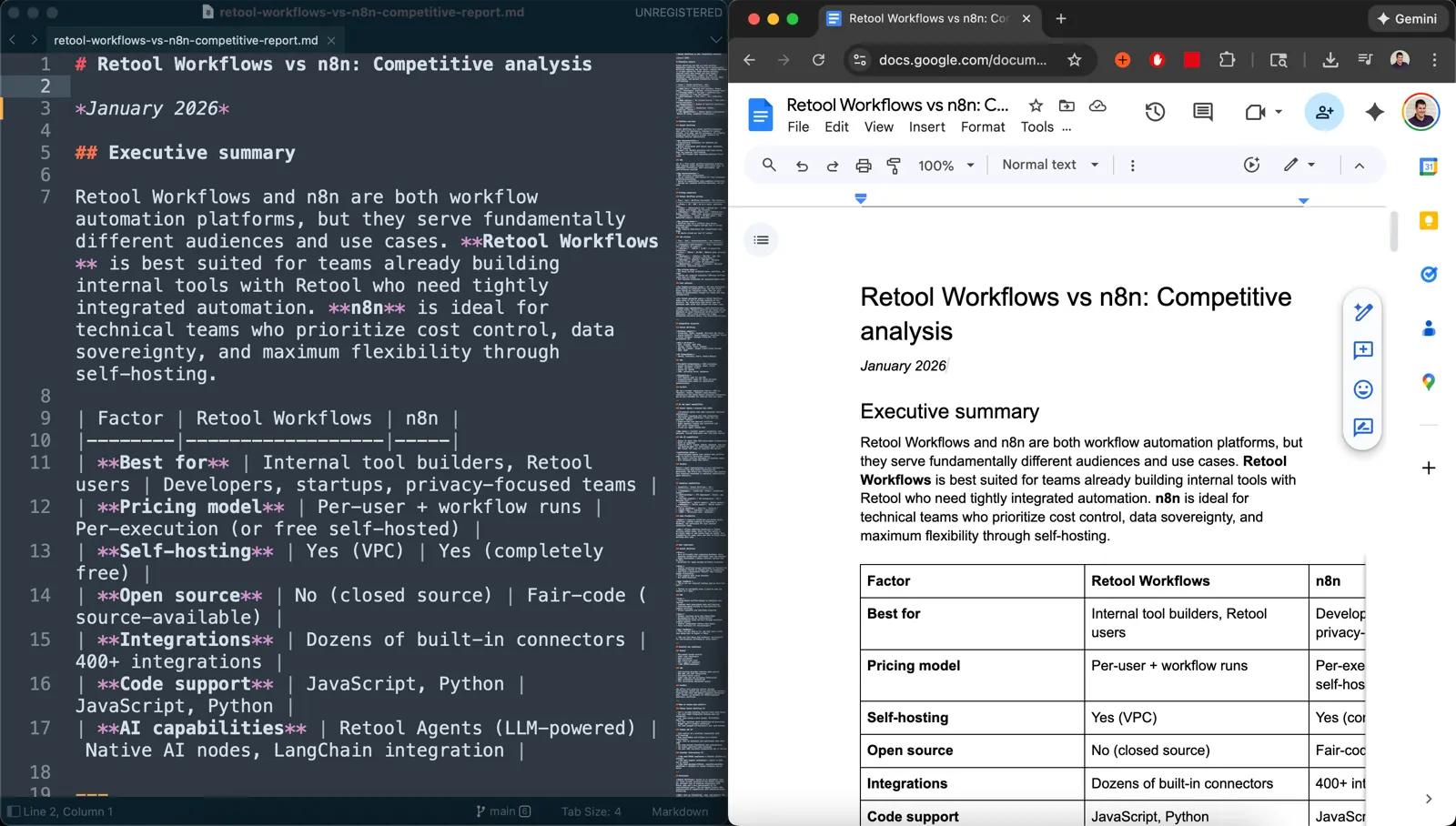
From there, you can share it with your team, add comments, or polish it further, whatever your workflow looks like.
What’s next
This whole process (research, synthesis, polished report) took me about fifteen minutes. Compare that to the hours I used to spend with a dozen browser tabs open.
Try it with your own competitor. Pick someone you’ve been meaning to research, open Claude Code, and see what you can learn in 20 minutes.
If you run into any issues or want to share what you built, reach out on Twitter. I’d love to see what you come up with.
Join our free 7-day email course and learn how to use Claude Code for your marketing work. Then, get notified when we publish new use cases and ways to stay ahead of the curve.
No spam. Unsubscribe anytime.