Using Obsidian as Claude Code's second brain
Claude Code can work with files on your computer. It can read them, write them, and edit them, which makes it much more powerful than a simple AI chatbot.
But here’s the problem I ran into pretty quickly: where do all these files actually live?
When I first started using Claude Code, I’d ask it to save things to my desktop, or to a random folder I created in the moment. A competitor analysis here, some content ideas there, a draft blog post somewhere else. Within a few weeks, I had useful information scattered across my entire computer.
Maybe you’re more organized than me. Some people keep everything in a “writing” folder or a “projects” directory. That works, but unless you’re using version control (which many marketers aren’t), things can still get messy fast. Where was that research you did last month? Which version of that document is the current one?
This is where a tool like Obsidian come in.
Why Obsidian works so well with Claude Code
Obsidian is a note-taking app, but calling it that undersells what makes it special. Here’s what matters for our use here:
Everything is Markdown. Every note in Obsidian is just a plain text file with some formatting. Claude Code already speaks Markdown fluently. There’s no proprietary format, special APIs to handle or any sort of export/import dance. Claude can read and write to your Obsidian vault directly.
Everything is local. Your notes live on your computer, not in someone else’s cloud. This means Claude Code has direct access to them through your filesystem.
It’s designed for linking ideas. Obsidian lets you connect notes to each other with simple links. When you’re building up research over time, being able to say “this connects to that” is incredibly useful.
A quick note: this approach could work with other tools too. Notion has its own integration, and there are other Markdown-based note apps out there. But I’m focusing on Obsidian because the local-first approach makes the Claude Code connection so seamless.
The “persistent context layer” concept
Here’s the mindset shift that made Obsidian click for me: stop thinking of it as just a note-taking app. Think of it as Claude Code’s long-term memory.
This framing comes from Axton Liu’s excellent guide, and it changed how I use the whole setup.
When you keep your research, your brand guidelines, your content ideas, and your project notes in Obsidian, Claude Code can access all of it. Ask Claude to write a blog post draft, and it can pull from your existing research. Ask it to create a competitor analysis, and it can reference the ones you’ve done before. Ask it to match your brand voice, and it can actually read your brand voice document.
Suddenly, your vault has become context that persists across every conversation.
How do I actually use this setup?
So what does this actually look like in practice? Here are a few ways I use my CC + Obsidian system:
Content calendar management. I keep my content ideas, drafts, and publishing schedule in Obsidian. When I’m planning what to write next, I can ask Claude Code to look at my existing content and suggest gaps, or to take an idea from my “someday” list and turn it into an outline.
Competitor research notes. In my last post about competitor analysis, I showed how Claude Code can research competitors and save the output to Markdown files. Those files now live in my Obsidian vault. When I need to reference them later, or want Claude to build on that research, it’s all right there.
Brand and style guidelines. Outside of just what I have in CLAUDE.md, I have a note with my brand voice, my target audience, and the phrases I like to use (and avoid). Claude can reference this whenever I’m drafting content.
Client or project notes. If you’re working with multiple clients or juggling several projects, having a dedicated space for each one means Claude always has the right context.
If you’re not starting from scratch, no worries. You might want to take a look at how Eleanor Konik used this setup to reorganize a 12-million-word vault, including bulk file renaming, restructuring daily notes, and finding information that was impossible to surface with regular search.
Getting it all hooked up
Here’s the good news: connecting Claude Code to your Obsidian vault is simple. Since Obsidian stores everything as regular files in a folder on your computer, Claude Code can work with them directly.
Step 1: Install Obsidian and find your vault folder
Download Obsidian and create a vault. A vault is just a folder where all your notes will live. You can create a new one for experimenting, or point it at an existing folder of Markdown files.
Once you’ve created a vault, you’ll need to know where it lives on your computer:
- On Mac: Your vault is typically in your Documents folder, or wherever you chose when creating it. You can find the exact path by right-clicking on any note in Obsidian and selecting “Reveal in Finder.”
- On Windows: Similar process. Right-click a note and select “Show in system explorer” to find your vault’s location.
Step 2: Add a CLAUDE.md file to your vault
Before running Claude Code, add a CLAUDE.md file to the root of your vault folder. This file gives Claude context every time you work in that directory.
In your CLAUDE.md, you can include things like:
- What this vault contains (“This is my marketing knowledge base with competitor research, content ideas, and campaign notes”)
- Pointers to specific files Claude should reference (“My brand guidelines are in
Brand/voice-and-tone.md”) - Defaults for how you want Claude to work (“Always use sentence case for headings”)
This way, Claude Code actually knows what’s in your vault and how to use it, without having to search around every time.
Step 3: Run Claude Code from your vault
Now you can run Claude Code directly from your vault folder. You have two options:
Using the terminal: Navigate to your vault folder and run claude. For example:
cd ~/Documents/MyObsidianVault
claude
Using Claude Code Desktop: Open the Claude Code desktop app and use the folder picker to navigate to your vault location.
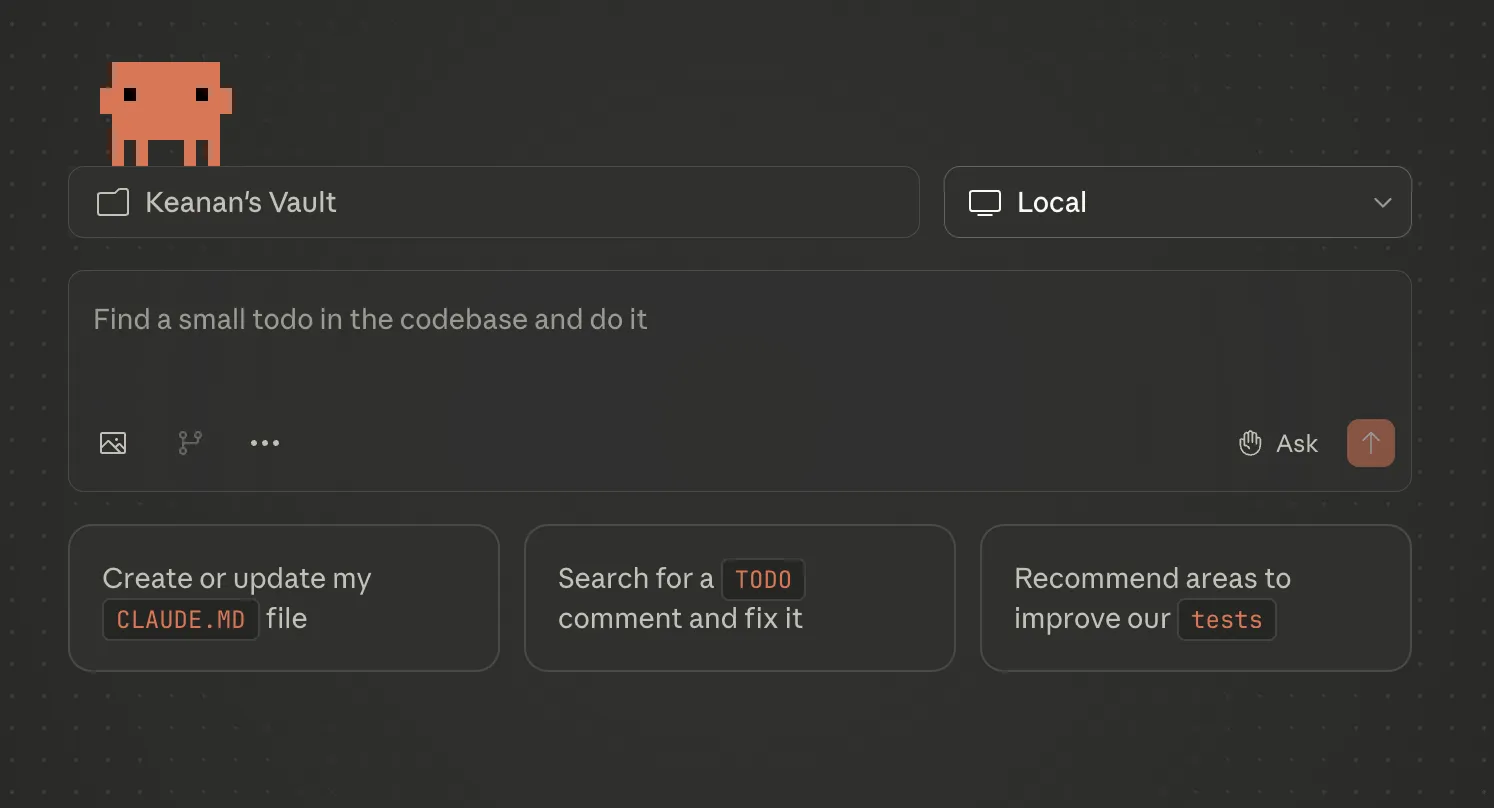
That’s it. Claude Code can now read and write to your Obsidian vault, and any files it creates will show up in Obsidian automatically.
Before you go wild: back up your vault
This is important. Before you let Claude Code make bulk changes to your notes, make a backup. Claude is good at this kind of work, but it’s always smart to have a safety net.
If you’re already using git for version control, you’re covered. If not, at minimum copy your vault folder somewhere safe before experimenting.
What’s next
The combination of Obsidian and Claude Code has changed how I organize information. Instead of scattered files and forgotten research, I have a single place where everything lives and where Claude can help me make sense of it.
If you’ve been putting off organizing your notes and projects, this might be the push you need. Start small: create a vault, add a few notes, and see what Claude Code can do with them.
Have questions about getting this set up? Reach out on Twitter or email me at keanan@claudecodeformarketers.com. I’d love to hear what you’re building.
Join our free 7-day email course and learn how to use Claude Code for your marketing work. Then, get notified when we publish new use cases and ways to stay ahead of the curve.
No spam. Unsubscribe anytime.